
Set Up : Institue of Certified Bookkeepers
ICB Membership
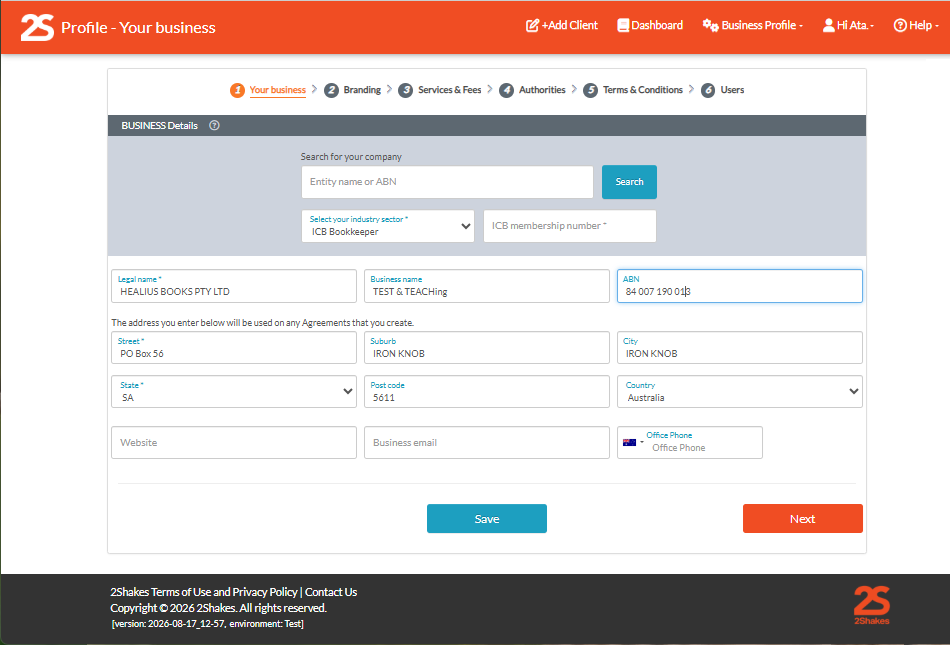
If your an ICB member you can select Industry type ICB Bookkeeper and enter you ICB number in the Profile > Your Business screen. You are then able to copy over the ICB Master Template wording into your 2Shakes account.
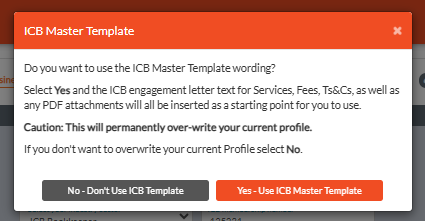
WARNING!
Accepting the ICB Template will OVER-WRITE any updates you previously made to your profile. So should only be used for the first time you start using 2Shakes.
ICB Services & Fees
The ICB master template includes standard services and fee text. When you review the services and fees you should:
Replace the $XX in the text with the actual amounts you charge in your practice.
Include details of any bank account access authorisations or limits that form part of your engagement.
Clarify what payment conditions apply to your practice and this engagement.
Authorities STP, TPAR or SGC authority forms
BAS or Tax Agent Authority
2Shakes includes a BAS or Tax Agent authority statement. In the Authority section of the Business Profile select the check box and add your name and registered number.
Other authorities (STP, TPAR, SGC etc.)
2Shakes also allows you to upload a 1 page authority form that will be signed by the main signer of the client agreement at the same time as your authority letter is signed.
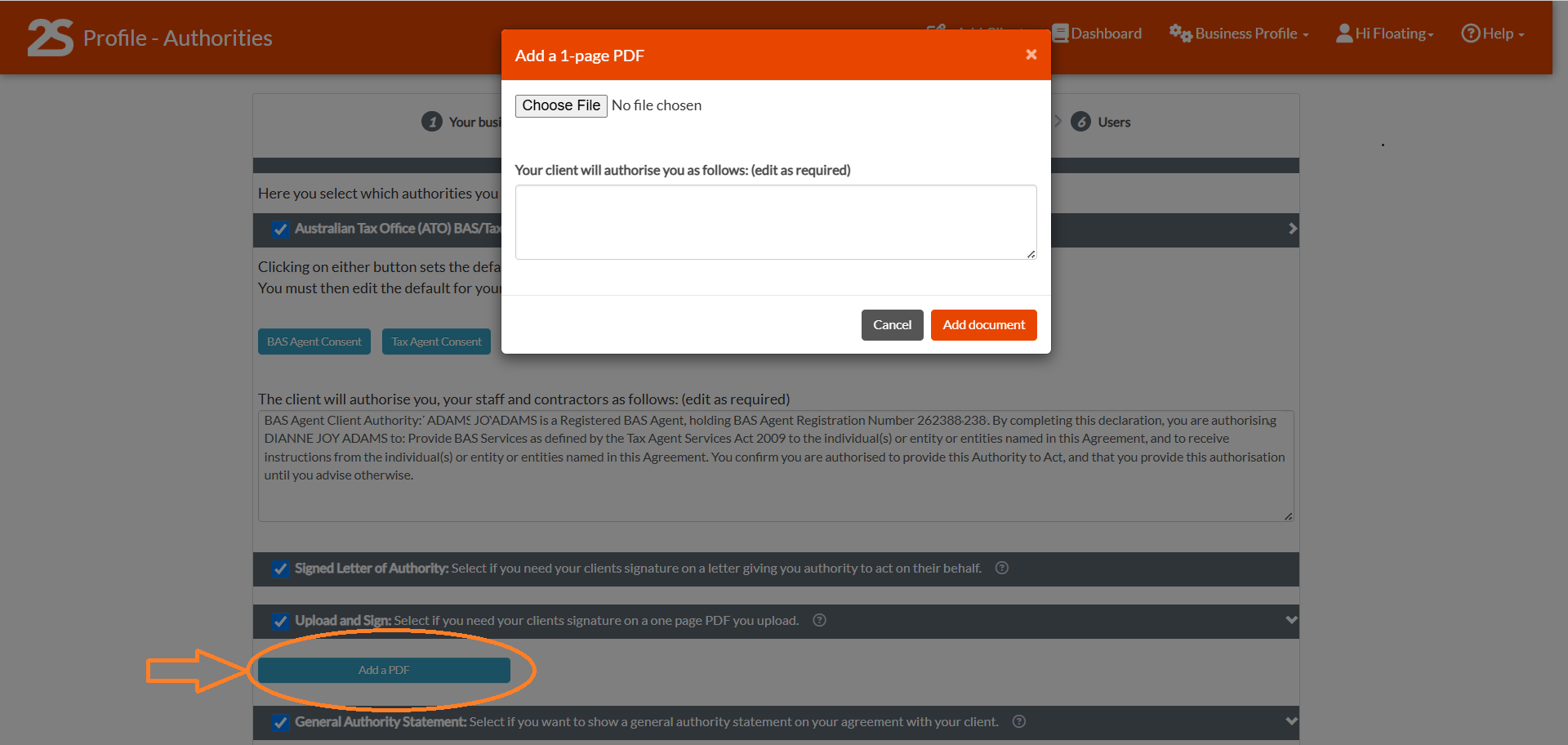
To set up a 1 page authority
Download the appropriate template from the list below and save it to your computer:
Open each template and add your logo, business details, and signature.
The form must be 1-page. If the form goes over 1 page you should resize the fonts or margins to bring it back to a 1 page document.
Save the file as a PDF document
Upload this as a 1 page PDF in the Authorities section. Use the link below to find the authority text to use when you upload your authority PDF. This text will be shown to your client when they sign your agreement.
You can create as many authority forms as you need on your business profile. Once created you can select these as needed for each client that you sign up.
ICB Terms & Conditions
The ICB standard set of terms and conditions will default into the agreement. You can also copy in a set of alternative T&C’s which you can select for each sign up.
ICB Attachments
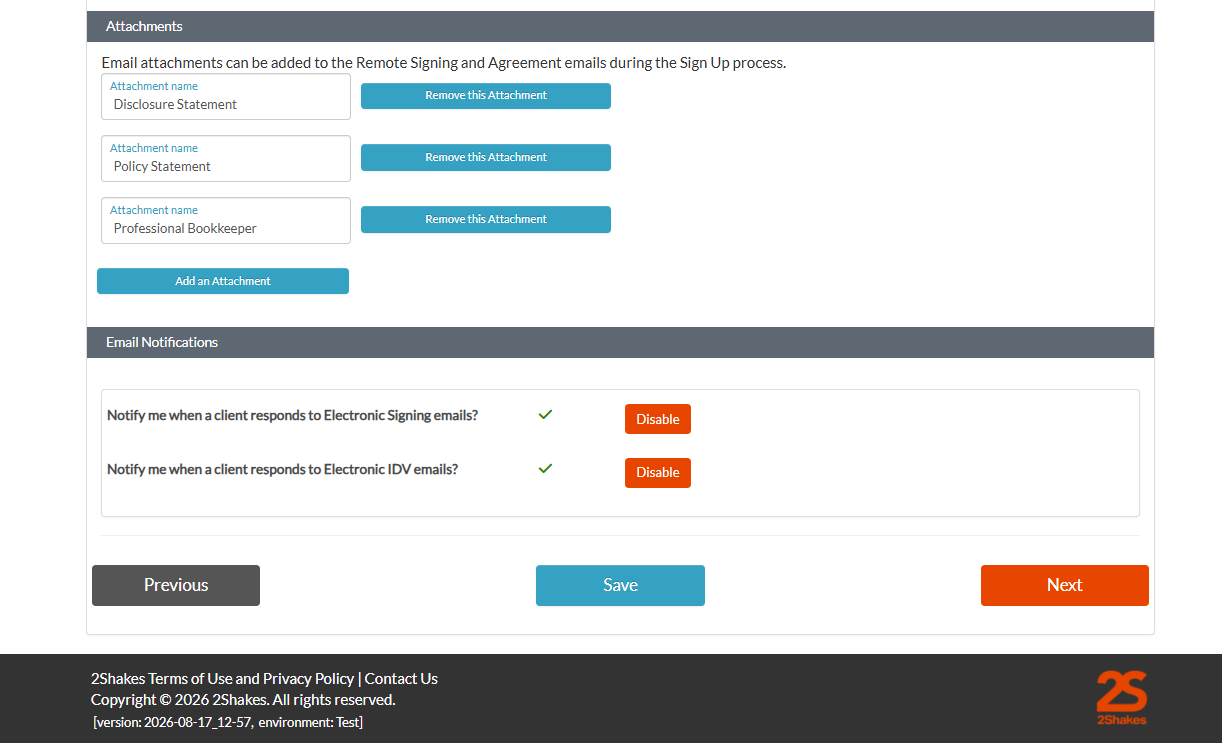
ICB attachments are pre-loaded for ICB members.
You can change them if needed in the Business Profile > Branding Page.
These are then available to be attached to the emails sent to your client from the Parties of Signatories page each time you sign up a client using 2Shakes.
Users
Set up log-ons for other staff by entering their details here, see Manage Users.
When you have finished setting up, click Done and you will be taken to your Dashboard.
Click +Add Client in the top Navigation bar if you are ready to sign up a client
Biometric Identity Verification
2Shakes includes a manual Identity Verification check so have can keep an auditable record of identity verification of your clients. After e-signing you use the management page to record that a manual ID check has been done manually (for example you have met the person and sighted their photo identity document), after which the final agreement is signed, sent and stored.
Alternatively you can do biometric identity verification of clients. This uses a selfie process to match the person face against their identity document, and then check the identity is real using the Australian Document Verification Service (DVS). To use Biometric ID verification you first need to send us completed IDV forms so we can apply to the DVS for approval to connect it to your 2Shakes account.
See on Guide to the ID Forms, DVS form, and Centrix Form for more detail on this process.
FAQ
My logo appears to be too big. How do I fix that?
You upload both the logo file and email footer file on the Branding page in the Business Profile. The maximum file size is 1MB. When you find that the logo or email footer image you uploaded looks too big (or too small) you can resize it. You change the size of your image file using graphics software. Resave it, and upload the changed imaged.
Once you have changed the image file you can go to the Review page in the Business Profile. Scroll down towards the bottom and you can see an example of how your email will look or use the Preview Agreement to see how your logo appears.
How do I deal with the different types of terms and conditions that I currently use?
Often the terms of trade differ depending on the type of customers you are working for, or the type of work you will be doing. One approach is to create different sets of terms and conditions for every different situation. A better recommended approach is to use the same set of terms of conditions for all your clients, with clauses that only apply when they are relevant. This is more efficient and because it minimizes the chance for human error, missing changes, and typos is normally more professional too. Once your clients are on consistent T&Cs it is also easier to manage and update your T&Cs going forward.